

CSS Selectors 101: Targeting Elements with Precision

When you start learning web development, you quickly understand that HTML is the structure (the skeleton) and CSS is the style (the skin). But there is a crucial logic layer that sits between them: CSS Selectors.
If CSS is a set of instructions for how your website should look, Selectors are the address on the envelope. Without them, the browser doesn't know which element you are talking to.
Why CSS selectors are needed
Imagine you are in a crowded room. If you shout, "Hey you!", everyone might turn around—or no one will. This is inefficient. To get the right person's attention, you need to be specific.
Element Selector: You shout, "Humans!" (Everyone looks).
Class Selector: You shout, "Everyone wearing a red shirt!" (A specific group looks).
ID Selector: You shout, "John Smith!" (Only one distinct person looks).
Selectors allow us to apply style rules with this same level of granularity. They are the absolute foundation of CSS; without mastering them, you cannot effectively style a layout.
Element selector
The most basic way to style a page is by selecting the HTML tag itself. This targets every instance of that element on the page.
Use Case: Setting site-wide defaults, such as font sizes for paragraphs or margins for headings.
Code:
/* Target all paragraph tags */
p {
  color: #333333;
  line-height: 1.6;
}
The Result:
Before: Paragraphs use the browser default (usually Times New Roman, black).
After: Every single
<p>tag on your website now has dark gray text and better spacing.
Class selector
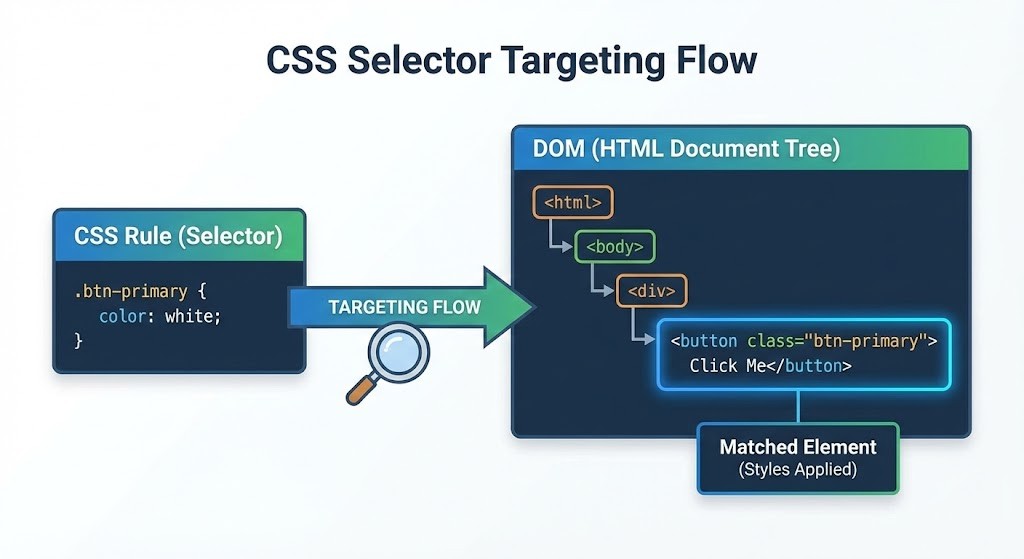
Often, you don't want all paragraphs to look the same. You might want some to be "warnings" or "highlights." This is where Classes come in. You assign a class name in your HTML, and target it in CSS using a dot (.).
Use Case: Reusable styles for buttons, cards, or alerts.
Code:
<p class="alert-box">This is an important update.</p>
<p>This is a normal paragraph.</p>
/* CSS - Note the dot (.) prefix */
.alert-box {
  background-color: #ffcccc;
  border: 1px solid red;
  font-weight: bold;
}
The Result:
- Only the paragraph explicitly labeled with
class="alert-box"gets the red background. The normal paragraph remains untouched.
ID selector
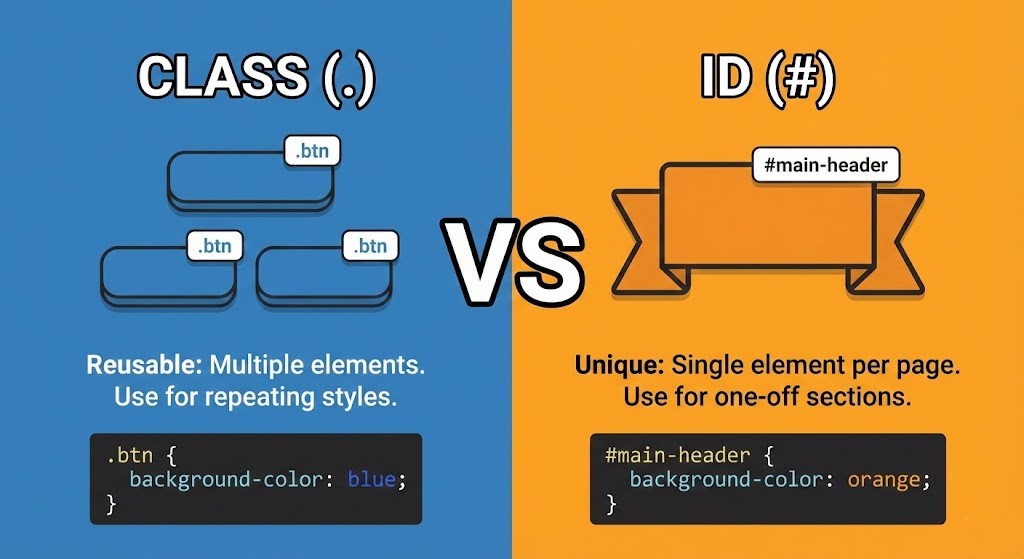
An ID is a unique identifier. Unlike classes, which can be used on many elements, an ID should be used on only one element per page. You target it using a hash (#).
Use Case: Major structural sections that appear once, like a Header, Footer, or a specific Main Content area.
Code:
<div id="main-navigation">
  </div>
/* CSS - Note the hash (#) prefix */
#main-navigation {
  position: fixed;
  top: 0;
  width: 100%;
}
The Result:
- This style applies strictly to that one navigation bar.
Group selectors
As you write more CSS, you will find yourself repeating code. If your <h1>, <h2>, and <h3> tags all need to share the same font family, you don't need to write three separate rules. You can group them using a comma.
The Code:
/* Efficient Grouping */
h1, h2, h3 {
  font-family: 'Helvetica Neue', sans-serif;
  margin-bottom: 0.5em;
}
Descendant selectors
Sometimes you need to target an element based on where it is. For example, a link (<a>) inside your navigation menu should look different than a link inside a paragraph of text.
A descendant selector uses a space to indicate "inside of."
Code:
/* Target only <a> tags that are inside a <footer> */
footer a {
  color: grey;
  text-decoration: none;
}

/* Target only <a> tags that are inside a <p> */
p a {
  color: blue;
  text-decoration: underline;
}
The Result:
Footer Links: Appear subtle and grey.
Paragraph Links: Appear standard blue and underlined.
You controlled two identical HTML elements differently based entirely on their context.
Basic selector priority
You need to remember about the conflict rules.
p { color: black; }      /* Element selector */
.highlight { color: red; } /* Class selector */
If you have a paragraph <p class="highlight">, what color will it be?
It will be Red.
At a very high level, CSS follows a hierarchy of specificity (priority):
ID Selectors (Most powerful / "High Priority")
Class Selectors (Medium Priority)
Element Selectors (Lowest Priority)
The browser looks for the most specific rule. An ID overrides a Class, and a Class overrides a generic Element tag.